

My Coach Office - Integrate Zoom for My Coach Office
Integrating Zoom for My Coach Office
Nov 28, 2025●
 0
0Frequently Asked Questions
- What do I need before starting the integration?
You need access to your My Coach Office account and a Zoom account. During the process you will be redirected to Zoom and must log in with your Zoom username and password.
- How do I start the Zoom integration in My Coach Office?
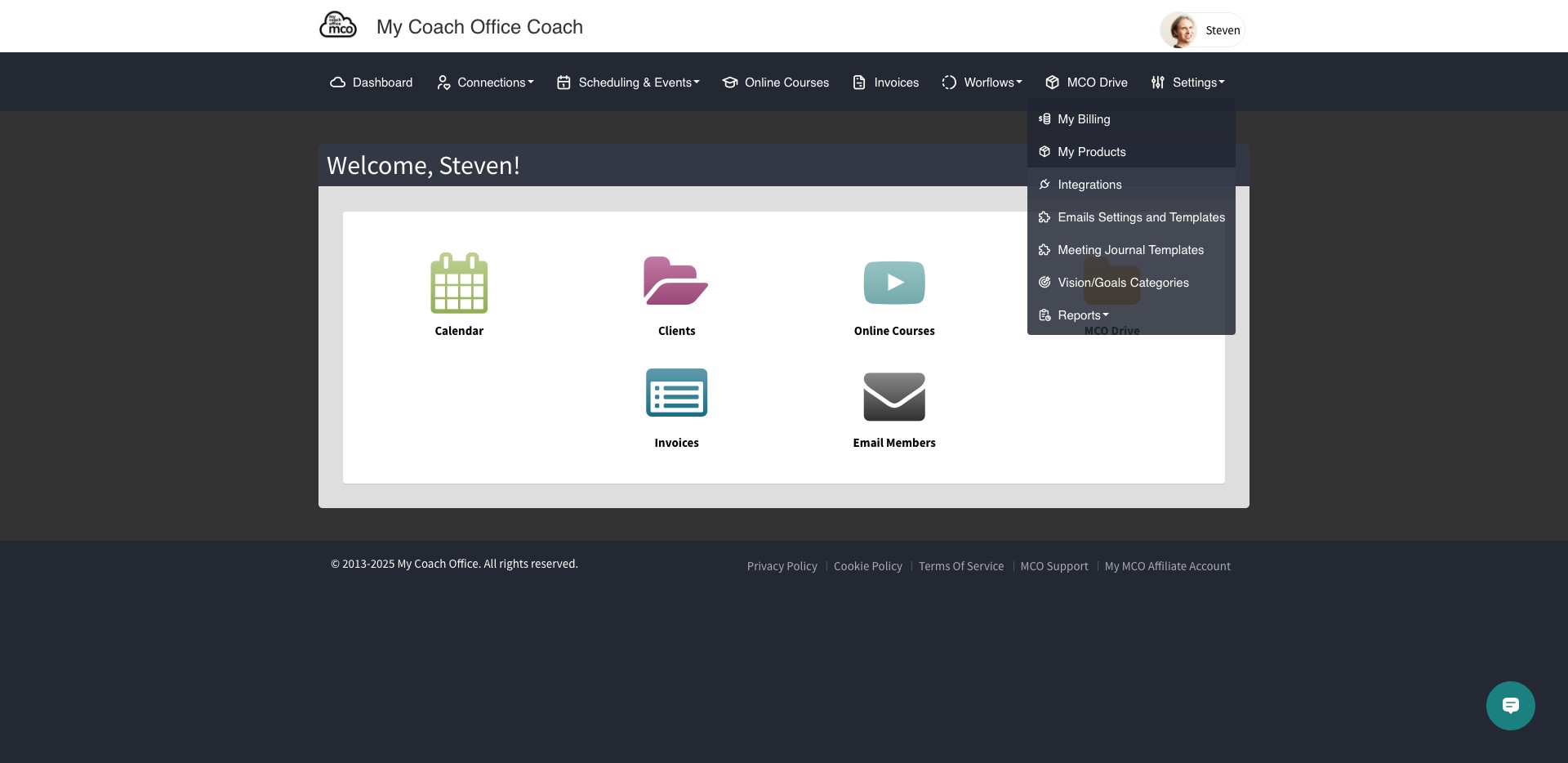
Go to https://app.mycoachoffice.com, open Settings > Integrations, click Integrate under the Zoom icon, then click Connect with Zoom. You will be redirected to Zoom to log in and must click Allow to grant access.
- How do I connect specific event types to Zoom meetings?
In My Coach Office go to Scheduling & Events > Event types, edit each event type you want to use with Zoom, set Location to “Zoom,” and click Save Changes.
- What does clicking “Allow” on Zoom do and why is it necessary?
Clicking Allow grants My Coach Office permission to manage your Zoom meetings so the app can create and manage meetings for your event types.